An alternative to the self-generated shared server certificate is a personalized self-signed certificate. First, access the SSL menu by clicking the "Advanced Tools" link from the main control panel menu, then click the "Install SSL Certificates" icon.
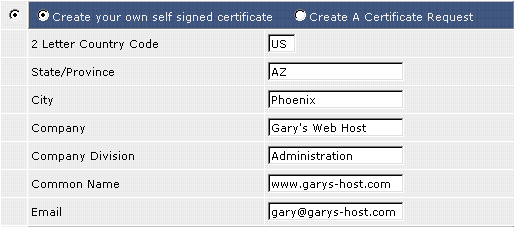
Step 1: Click the radio buttons to select "Create your own self signed certificate."
Step 2: Enter the information about yourself and your company.
A list of country codes is available at: http://www.site-helper.com/countrycodes.txt
The Common Name is the exact web address the certificate is associated with. In the above example, https://www.garys-host.com/anything would be valid, but not https://subdomain.garys-host.com.
Step 3: Click the "Save" button at the bottom of the screen. You will be taken back to the SSL menu.